
- What is the Google Ads recommendations tab?
- What is optimisation score, and is 100% the goal?
- Which Google Ads recommendations are worth applying?
- Which recommendations should you dismiss?
- How do you judge any recommendation against booked jobs?
- How do you turn auto-apply recommendations off?
- Does dismissing recommendations hurt your account?
- FAQ
What is the Google Ads recommendations tab?
The recommendations tab is a list of changes Google suggests for your account. You find it in the Campaigns menu, under Recommendations. Each card explains a change and offers a one-click apply. Google’s own description is that they help with bidding, keywords and ads. Some are genuinely useful. Most point in the same direction.
Read a month of them and the pattern shows up. Raise this budget. Add these broad match keywords. Switch to this automated bid strategy. Turn on automatically created assets. Reach more people. Very few say cut, pause, or narrow.
That is not dishonesty. It is incentive. Google gets paid when you spend more, so the advice tilts toward more reach. Your business gets paid when the phone rings and a crew gets sent out. Those two goals overlap sometimes. The tab cannot tell you when.
What is optimisation score, and is 100% the goal?
Optimisation score is a number from 0% to 100% that Google shows above your recommendations. Google describes it as an estimate of how well your account is set to perform. At 100%, Google says the account is set to perform at full potential.[1] It covers active Search, Display, Video Action, App, Performance Max, Demand Gen and Shopping campaigns.
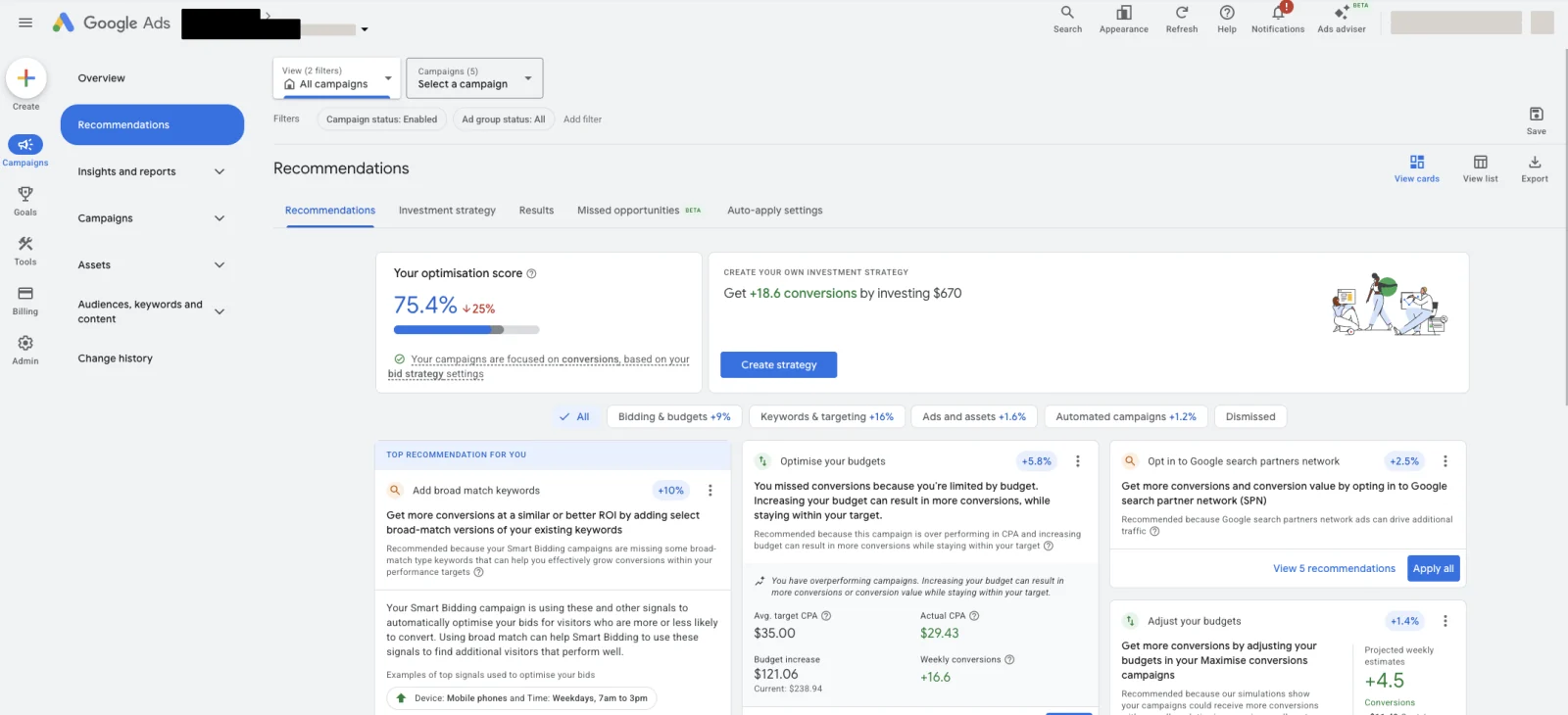
Here is the part that matters. Google’s own documentation says that applying a recommendation and dismissing a recommendation both change your score. So there are two ways to clear the tab. Act on every suggestion, or reject every suggestion. You land in the same place. A score that moves either way is not measuring your results. It records that you responded, nothing more.
So no, 100% is not the goal. Booked jobs at a cost you can live with is the goal. We have taken over accounts at 98% that were bleeding money. We have taken over accounts in the 60s that were the best in their city. The score did not know the difference, because the score never sees your calendar.
One naming note. Google labels it Optimisation score in an Australian or UK account and Optimization score in a US one. Same number, same meaning.
Which Google Ads recommendations are worth applying?
The useful ones repair something that is actually broken. They fix a leak instead of opening a tap. These are worth reading every time a new one appears.
| Recommendation type | Why it is worth it | Check first |
|---|---|---|
| Fix conversion tracking that is broken or missing | Without it, nothing else in the account can be judged | That it is not overwriting a working setup you already have |
| Remove non-serving or redundant keywords | Dead weight in the account, no downside to clearing it | Nothing seasonal is on the list. A storm keyword is not dead in July |
| Fix disapproved ads and broken landing page URLs | A disapproved ad earns nothing. A dead URL burns clicks | Nothing, apply it |
| Add missing assets like sitelinks and callouts | More of the page, same click cost | Write the copy yourself. Do not accept Google’s draft wording |
That is close to the whole list. Notice what they have in common. None of them change what you spend, and none of them change who sees your ads. They fix plumbing, which is a phrase you will appreciate more than most readers.
Which recommendations should you dismiss?
Dismiss anything that widens your reach or raises your spend on Google’s timetable instead of yours. The idea is not always wrong. The tab just has no idea what a job is worth to you. These are the ones that cost contractors the most money.
- Add broad match keywords. This is the most expensive card in the tab. Broad match on a trade term pulls in job seekers, do-it-yourselfers and towns you do not serve. If you do want broader keywords, do it deliberately with a negative keyword list already built. See the master list of searches to block.
- Raise your budget. Sometimes right, but only when your cost per booked job is already under what a job is worth. Do that math yourself first. And know this. A campaign on a target based bid strategy showing “Limited by budget” delivers at your target rather than beating it. More budget buys more volume at the same cost per job. It does not buy cheaper jobs.
- Switch your bid strategy. A bid strategy change restarts learning and moves your cost per job for weeks. That is a planned decision, not a one-click one. Read Smart Bidding for home services before you touch it.
- Reach more people with audience expansion. Your market is a service area and a set of trades. Expanding past that is spending on people who cannot book you.
- Turn on automatically created assets. Google writes headlines from your site and runs them in your ads. There is a second cost here. A Search campaign using automatically created assets is in scope for the AI Max upgrade in September 2026. So is one using campaign-level broad match. Applying this card decides that for you.
- Apply recommendations automatically. Covered below. This is the one to handle today.
Dismissing is not rudeness and it is not risk. It is a filing decision. The card goes away and your account is untouched.
How do you judge any recommendation against booked jobs?
Three questions, in order. If you cannot answer the third one, do not apply the card. This takes about ninety seconds and it is the whole method.
Then apply one card at a time and note the date. Two changes in the same week means you learn nothing from either. To test something properly instead of watching and hoping, use an experiment. The volume question there is an honest one.
The number you judge against is always cost per booked job, never cost per lead and never the score. Say a card cuts your cost per lead. If it also fills the phone with people who were never going to book, your week just got worse. That distinction is covered in the Google Ads metrics that matter.
How do you turn auto-apply recommendations off?
Auto-apply lets Google make selected changes to your account without asking you. Turning it off takes about thirty seconds. Do it now, before you read the rest of this doc, then come back.
- Go to the Recommendations page in the Campaigns menu.
- Select Auto-apply settings.
- Uncheck every recommendation you want turned off.
- Select Save.
You can reach the same controls from Account settings in the Admin menu, under the auto-apply dropdown. Google shows a red dot next to each automatically applied recommendation you have switched off.[2]
Two things are worth knowing while you are in there. The History tab on that same screen shows who enrolled the account and when. That is how you find out whether it was you, a previous agency, or someone on a phone call.
The second: auto-apply does not raise budgets. Google’s documentation says budget raising is not included, and that the system will not increase your budget. That is a fair point in its favor.
What auto-apply will do is real enough. Google’s list of available types includes:
- Adding broad match keywords, and adding keywords
- Switching your bidding to Maximize Clicks or Maximize Conversions
- Adjusting your Target CPA or Target ROAS
- Rewriting your responsive search ads, and changing ad rotation
- Expanding your audiences
- Upgrading your conversion tracking
Any one of those can move your cost per booked job while you are up on a roof.
If someone else runs your account, check this screen anyway. It is one of the first places we look in an audit. It is switched on far more often than owners expect. The rest of the defaults that leak money are in the campaign settings guide.
Does dismissing recommendations hurt your account?
No. Dismissing a card removes it from the tab and changes nothing about how your campaigns run. It affects your optimisation score, which is the point of this whole doc. Your ads, bids, keywords and budget stay exactly as you set them.
The only real cost is a conversation. If a Google representative calls you about your score, they will treat a dismissed card as a missed opportunity. You now know what the number counts. Their job is adoption of Google’s advice. Yours is a full calendar. Those are not the same job, and who is really on the end of that call is worth knowing before the phone rings.
If you want a second opinion on which cards in your tab are worth applying, that is a fair ask. Get someone to read your account against your booked jobs, not against your score.
Stop reading · start fixingSee where your pipeline is leaking.Free 15-minute Leak Finder. We pull up your numbers, name your biggest leak, and hand you a 90-day plan. No sales script, no hard close.Find My Google Ads LeaksFAQ
Is a 100% optimisation score good? Not on its own. Google’s own documentation says applying and dismissing both change the score. So 100% only means the tab is empty. It says nothing about your cost per booked job. Plenty of 100% accounts lose money and plenty of 70% accounts print it.
Should I apply Google Ads recommendations? Apply the repairs. Fix broken conversion tracking, disapproved ads, dead landing page URLs, and clear out non-serving keywords. Dismiss the ones that widen reach or raise spend until your own math says otherwise. Judge every card against cost per booked job over 30 days.
How do I stop Google from changing my account automatically? Go to the Recommendations page in the Campaigns menu, select Auto-apply settings, uncheck everything you do not want, and save. Check the History tab on the same screen to see who enrolled the account and when. The controls are also under Account settings in the Admin menu.
Does dismissing a recommendation lower my optimisation score? It changes it. Google’s documentation says applying and dismissing both move the score, so a dismissed card stops counting against you. Nothing about your campaigns changes either way. The score is a record of responses, not a measure of performance.
Why does Google keep telling me to raise my budget? Because more spend is the platform’s default answer, and the tab cannot see what a job is worth to you. Raise the budget only when your cost per booked job already sits under your job margin. On a target based strategy showing “Limited by budget”, extra budget buys volume at the same cost, not cheaper jobs.
Are recommendations different for Performance Max? The tab covers Performance Max too, along with Search, Display, Video Action, App, Demand Gen and Shopping. The call is the same in all of them. Repairs are worth applying, reach and spend cards get the three questions above. See Performance Max for home services.


